Sales Navigator list building—without the busywork

Stop buildingSales Navigatorlists page by page.

Choose the list, page count, and pace once. ListCoast selects the visible leads, saves them, advances to the next page, and repeats—so the work between a good search and a usable list no longer demands every click from you.

01 One setup for a multi-page run 02 Pause or stop anytime 03 $19 once—no subscription
Desktop Chrome workflow
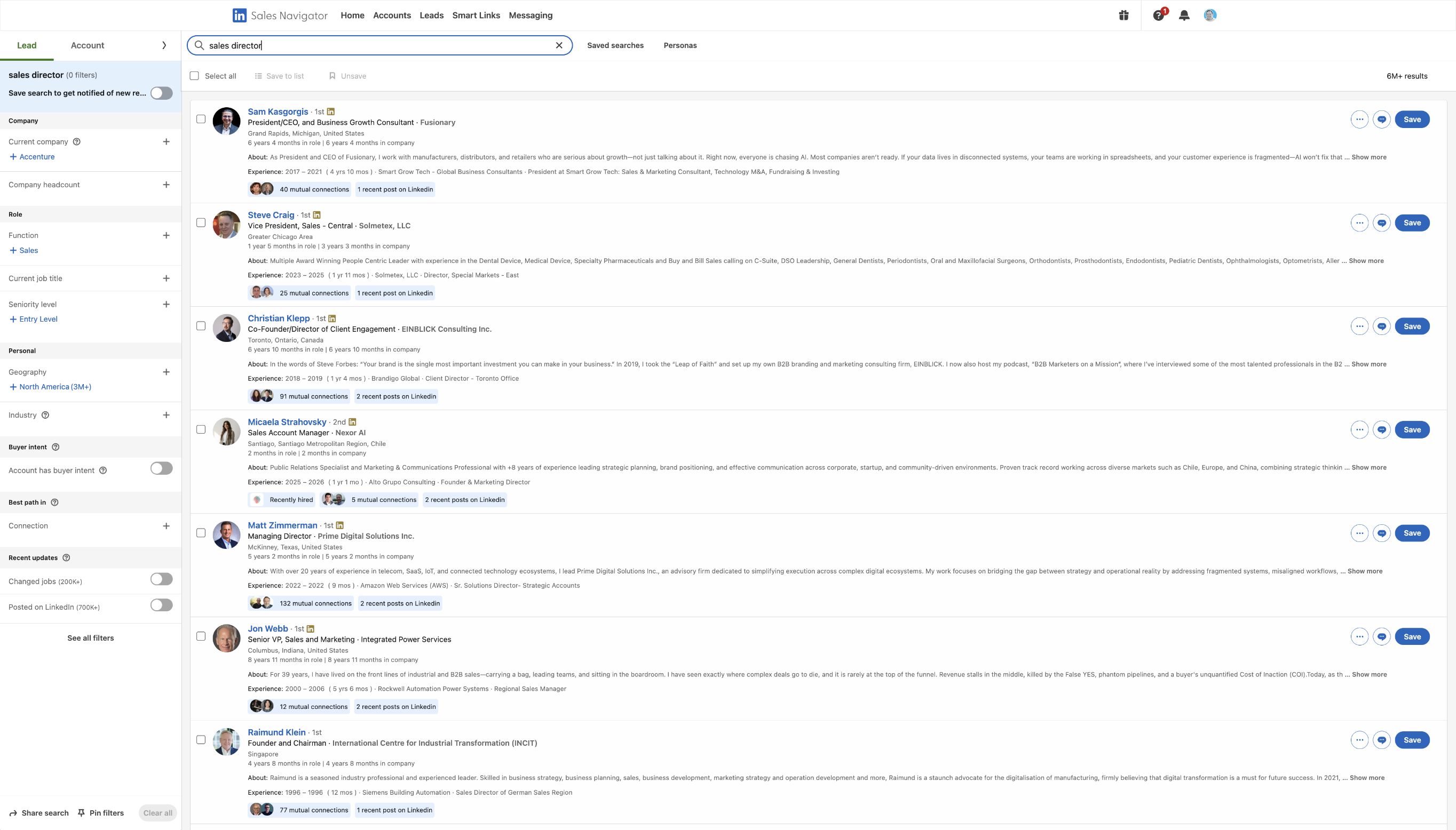
Actual LinkedIn Sales Navigator search results containing visible lead rows, selection controls, and Save buttons
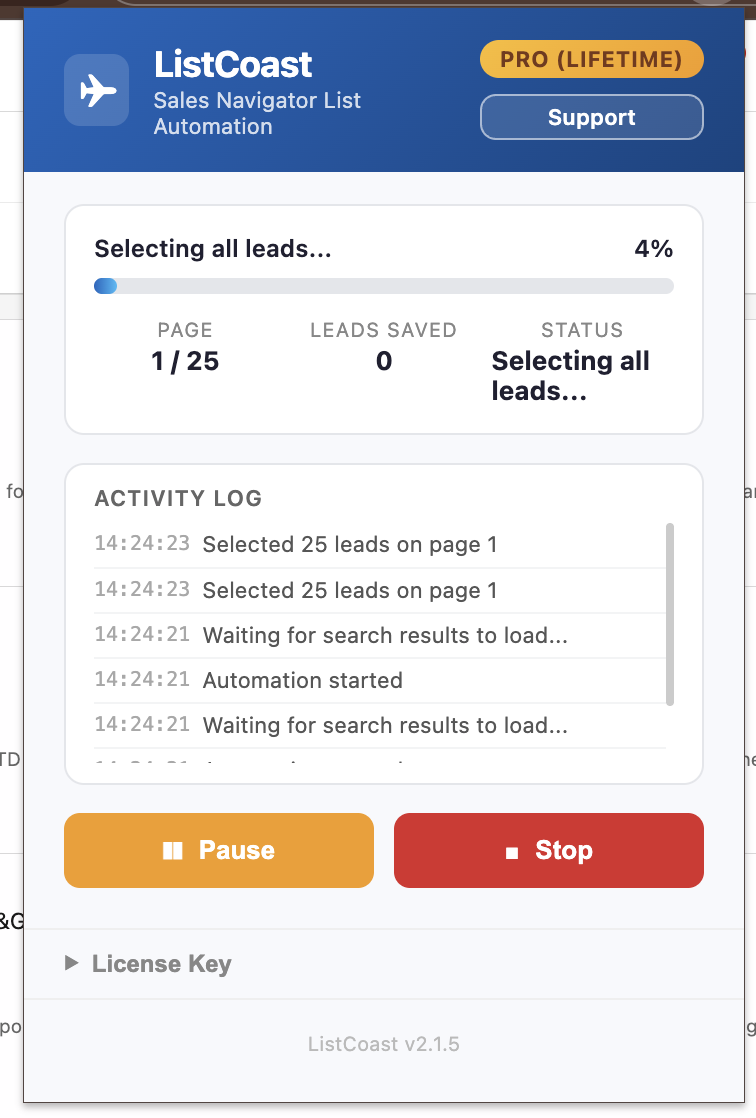
Actual ListCoast run
Actual ListCoast run showing progress, activity, pause, and stop controls
Real product · Real LinkedIn Sales Navigator interface

You found the leads. Now skip the busywork.

Here’s the real workflow—inside Sales Navigator.

Your targeting decides who belongs. ListCoast handles the mechanical loop between the real Sales Navigator controls and your finished saved list.

Actual populated Sales Navigator searchVisible leads · Select all · Save to list
Actual LinkedIn Sales Navigator results page populated with lead rows, selection checkboxes, Select all, and Save to list controls
Without ListCoast
01Select all 02Save to list 03Next page 04Repeat
Actual ListCoast runProgress, activity, pause, and stop stay visible.
Actual ListCoast running screen showing page progress, activity log, Pause, and Stop controls
99manual actions across 25 pages
25 select + 25 choose list + 25 save + 24 next
1configured ListCoast run
Set the list, pages, and pace once

You choose the pace. ListCoast gives you back the hands-on attention spent selecting, saving, and advancing page after page; total run time still depends on Sales Navigator page loads and your 3–30 second setting.

Actual ListCoast interface
Actual ListCoast run in progress with page count, leads saved, activity log, Pause, and Stop controls

One setup. A visible run. A finished list.

Know what it is doing at every step.

ListCoast is not a hidden black box. The dashboard shows the current page, leads handled, current action, and a time-stamped activity log while the run is active.

  • 01
    Use a new or existing list

    If your chosen list does not exist, ListCoast creates it before saving the leads.

  • 02
    Set the run once

    Choose the number of result pages and a 3–30 second delay between actions.

  • 03
    Follow every page

    Watch progress, leads handled, current status, and completed actions as they happen.

  • 04
    Stay in control

    Pause, resume, or stop without losing sight of the run.

Built for one job

It automates the list-building loop.
Nothing more.

That narrow scope is the point. ListCoast does not try to become your CRM, enrichment platform, or outreach system. It handles the repetitive step between a finished Sales Navigator search and a saved lead list.

LISTCOAST DOES
  • Select the visible lead results
  • Save them to your chosen list
  • Create that list when needed
  • Advance through result pages
  • Show progress and activity
LISTCOAST DOES NOT
  • Send messages or connection requests
  • Export or enrich lead data
  • Change profiles or account settings
  • Work inside LinkedIn Recruiter
  • Replace your targeting judgment
Why Chrome asks for permissions

activeTab and scripting let ListCoast run the workflow you start. storage keeps your settings, usage, and offline license status on your device. The extension operates on LinkedIn Sales Navigator pages.

Account-use disclosure

You control the pace. LinkedIn controls the platform.

ListCoast lets you set a 3–30 second delay between actions and pause or stop a run whenever you choose. A longer delay reduces the frequency of actions, but it does not make third-party automation approved, compliant, or risk-free.

Try the workflow before you pay

Save 10 result pages free every month.

The code allows 10 processed Sales Navigator result pages per calendar month—one 10-page run or smaller runs totaling 10. The allowance resets when the month changes. Pro removes the monthly ListCoast page cap without adding a subscription.

Before you buyChrome desktop and LinkedIn Sales Navigator are required. ListCoast is self-installed from a ZIP using Chrome Developer Mode. Updates arrive by email.
Free

Prove it on your own search

$0
  • 10 processed result pages per calendar month
  • Up to 250 leads when pages contain 25 results
  • New or existing list support
  • Adjustable pacing and visible progress
  • Pause, resume, stop, and activity log
Save 10 pages free this month Chrome desktop · Self-installed ZIP
For regular list building
Pro Lifetime

Pay once. Keep the workflow.

$19
  • No monthly ListCoast page cap
  • Every Free plan control
  • Your unique lifetime license key
  • Extension updates delivered by email
  • Installation and activation instructions
Get Pro Lifetime — $19 once One payment · Unique key · Email delivery

Know the setup before checkout

From ZIP to Chrome.
Four clear steps.

ListCoast is currently self-installed rather than distributed through the Chrome Web Store. Keep the extracted folder in a permanent location so Chrome can continue loading it.

Download the free ZIP
  1. 01
    Download and unzip

    After a Pro purchase, the download link and unique lifetime license key arrive by email.

  2. 02
    Open Chrome Extensions

    Enter chrome://extensions in the Chrome address bar.

  3. 03
    Turn on Developer Mode

    Use the switch at the top right of the Extensions page.

  4. 04
    Choose “Load unpacked”

    Select the extracted ListCoast folder, then pin the airplane icon for easy access.

No vague answers

What to know
before your first run.

Still unsure? Visit ListCoast Support or email trevor@tlrconsultinggroup.com.

What exactly does ListCoast automate?+

On a LinkedIn Sales Navigator lead-search page, ListCoast selects the visible results, saves them to the list you name, advances to the next page, and repeats for the number of pages you choose. It does not send messages, send connection requests, enrich data, or export leads.

What is included in the Free version?+

Free includes the complete core workflow for 10 processed Sales Navigator result pages per calendar month. You can use that as one 10-page run or several smaller runs totaling 10 pages. The counter resets when the month changes. If each processed page contains 25 results, that is up to 250 leads.

Is ListCoast safe for my LinkedIn account?+

No third-party automation tool can promise that. You can set a 3–30 second delay and pause or stop any run, but pacing does not make automation approved or eliminate account risk. LinkedIn says browser extensions that automate activity are not permitted and may lead to temporary or permanent restrictions. Review LinkedIn’s automation notice and User Agreement, then use ListCoast at your own discretion.

What does the $19 lifetime plan unlock?+

Pro removes the monthly ListCoast page cap. It does not change LinkedIn’s own access or usage limits. Pro is a one-time purchase, not a subscription, and your unique lifetime license key is delivered after checkout.

Does it work with LinkedIn Recruiter?+

No. ListCoast is built for LinkedIn Sales Navigator lead-search pages. It does not run inside LinkedIn Recruiter or regular LinkedIn search.

Can I use an existing Sales Navigator list?+

Yes. Enter the existing list name and ListCoast will use it. If the named list does not exist, ListCoast can create it. When the visible leads are already saved to that list, the run recognizes that state rather than toggling them out.

Does ListCoast send my search or lead data to a server?+

No. The workflow and license validation run locally in the extension. Your chosen settings, monthly usage count, and offline license status are stored in Chrome on your device. ListCoast does not transmit your search results, saved leads, LinkedIn credentials, or messages to TLR Consulting Group.

What should stay open while it runs?+

Keep the Sales Navigator search tab open while a run is active. The extension shows progress on that page, and you can pause or stop from the ListCoast controls before changing the search or closing the tab.

How are ListCoast updates delivered?+

We send update notices and the latest download link by email. Because ListCoast is currently self-installed, Chrome cannot update it automatically. Download the new ZIP, replace the old folder, and click Reload on the Chrome Extensions page.

Is ListCoast affiliated with LinkedIn?+

No. ListCoast is an independent product from TLR Consulting Group LLC. Interface changes can interrupt browser automation, and you are responsible for using the product in accordance with LinkedIn’s terms and your organization’s policies.

The search deserves your judgment. The buttons do not.

Spend your next prospecting block on people—not clicks.